Plugin Guidelines
The following style guide outlines the guidelines that your Stream Deck plugin's metadata must conform to when publishing on Marketplace. In doing so, it ensures an inclusive, consistent, and good user-experience for Stream Deck users.
On this page, you'll learn more about:
Guidelines for defining the metadata associated with your plugin.
Image dimensions and requirements.
General best practices, such as providing visual feedback.
We, Elgato, reserve the right to request changes to your product to ensure it conforms the necessary guidelines. Failure to do so may result in your Marketplace submission being declined, or your product being removed from Marketplace.
UUIDs
Universally unique identifiers (UUIDs) are used by Stream Deck and Marketplace to identify:
include author (organization name) and plugin name in your plugin UUID — for example
com.elgato.volume-controller.prefix action UUIDs with your plugin UUID — for example
com.elgato.volume-controller.mute-audio-device.
change UUIDs after publishing your plugin.
reverse DNS format — consider using the format
{DOMAIN}.{PRODUCT}, for examplecom.elgato.wave-link.VisibleInActionsList— prefer cloning actions, and hiding older implementations instead of changing action UUIDs.
Plugin
Name
Your plugin's name is a word, or short phrase, that uniquely identifies your plugin and the functionality it provides.
use a unique name — check your name is available on Marketplace.
accurately reflect the functionality provided by your plugin.
infringe copyright or trademarks.
use derogatory or offensive vocabulary.
descriptive and concise — for example "Volume Controller", "Screen Capture", "Color Picker", etc.
memorable and easy to pronounce.
organization name — avoid including your organization name in your plugin's name; organization is already visible on Marketplace.
Author
The Author field within the manifest uniquely identifies you, or your organization, as the creator of the plugin, and is visible within Marketplace and Stream Deck.
use your Marketplace organization name.
use company name where applicable — for example "Elgato".
use your real name, if you wish too — for example "Jane Doe".
use your online alias, if you wish too — for example "jdodo".
infringe copyright or trademarks.
use derogatory or offensive vocabulary
Icon
Your plugin's icon, visible within Stream Deck preferences pane, must adhere to the following guidelines.
Sizing
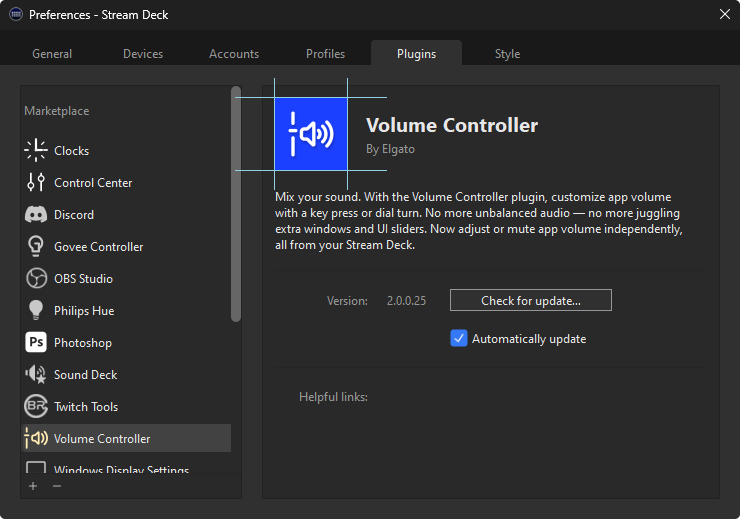
use PNG format.
accurately portray what your plugin does.
infringe copyright.
use offensive imagery.
Actions List
Naming
Your plugin's category and action names must accurately represent their functionality, and be sufficiently descriptive but concise (approximately 30 characters or less).
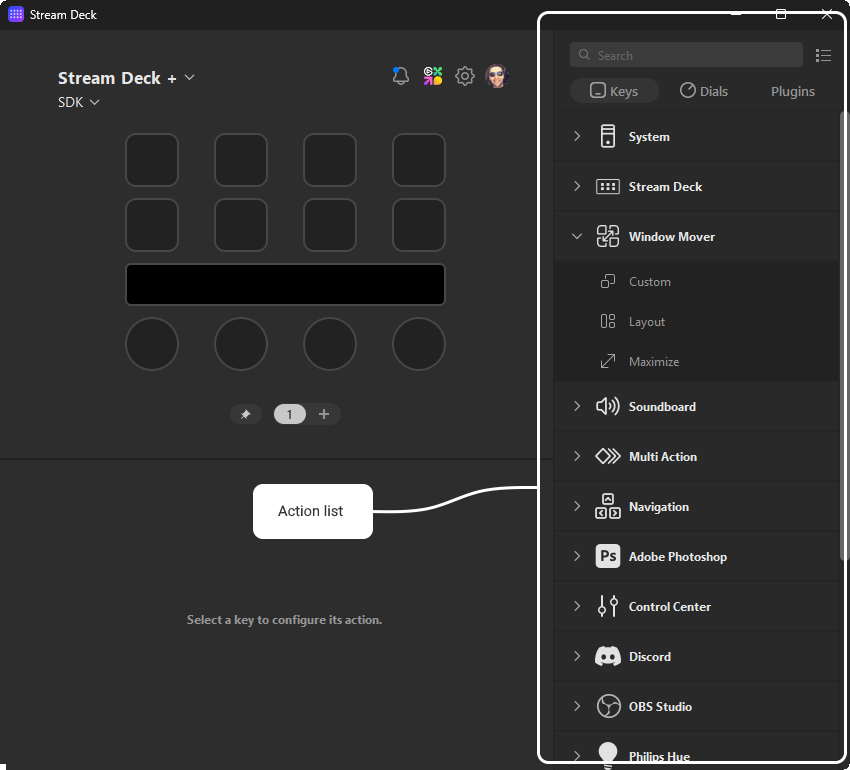
include author names in category, for example "Camera Controls (John Doe)".
use derogatory or offensive vocabulary.
specify action tooltips.
"Volume Controller", "Mute Audio Device" — descriptive and concise names.
"Twitch Mod Controls" — descriptive without infringing copyright exclusivity.
"Moderator Controls for Streaming" — too vague, and more than 30 characters.
"Toggle Chat Mode And Send Message" — should be two separate actions.
"Elgato Wave Link" — omit organization when also the author, prefer "Wave Link".
Icons
Category and action icons within the action list supports both vectorized (SVG) and rasterized (PNG) image files, with SVG being the recommended format to provide optimal scaling.
Sizing
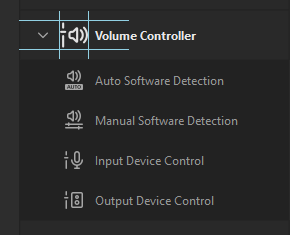
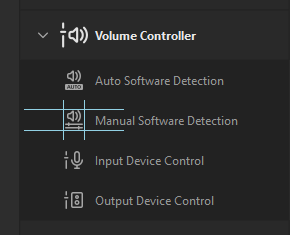
use SVG or PNG format.
use monochromatic color scheme, with a transparent background.
provide high-DPI variants when using rasterized images (PNG).
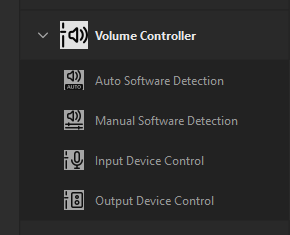
use white stroke,
#FFFFFF, for action list icons.


use colors to style action list icons.
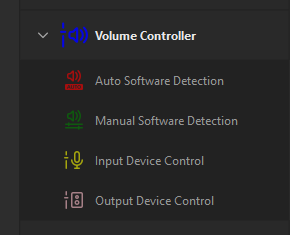
use solid backgrounds on action list icons.
SVG — scale well on all devices and layouts.
PNG — rasterized images may not scale well.
Grouping
When determining the actions provided by your plugin, you should aim to provide an array of functionality that adds value to your plugin, without overwhelming the user.
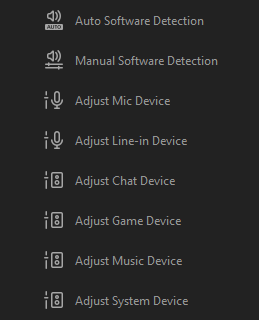
combine actions — actions with common settings should be consolidated, and have a property inspector for configuring them.
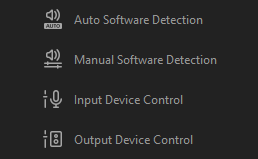
provide a reasonable amount of functionality, between 2 and 30 actions, no more.
avoid static actions that aren't configurable.
Key Icons
Key icons, represented as state images within the manifest, can be vectorized (SVG) or rasterized (PNG) images, with SVG being the recommended format to provide optimal scaling.
In addition to static images, animated (GIF) images may also be specified within the manifest, but cannot be used when programmatically updating actions.
Sizing
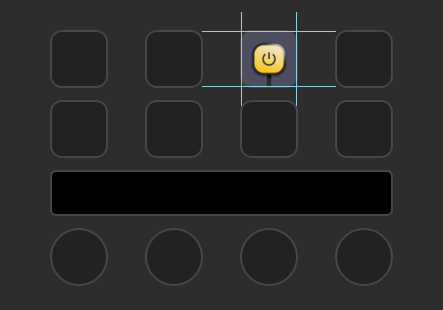
When updating key icons programmatically only one image size can be supplied. For rasterized images, it is recommended to provide an image that uses the higher DPI dimensions; Stream Deck will scale the image down accordingly.
use SVG, PNG, or GIF format.
use states effectively — update icons when a state associated with the action changes, for example the associated smart light is turned on / off.
SVG — vectorized images allow you to provide visually appealing dynamic keys, for example charts and meters.
positional awareness — consider grouping actions based on their coordinates to provide new levels of interactions.
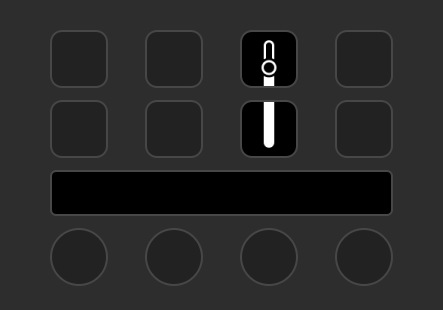
programmatic flooding — keys are not intended for rendering high frame rate videos; limit programmatic calls to a maximum of 10 per second.
Layouts
Touch strip layouts found on Stream Deck + support providing rich feedback in the form of elements, and allow for touch and hold interaction. The following should be considered when using layouts.
Sizing
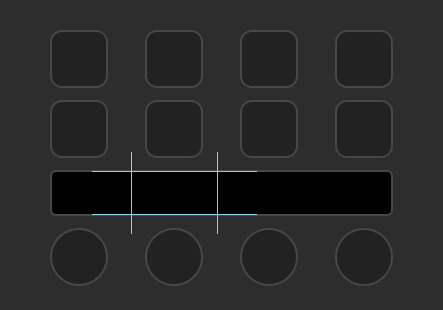
All elements within a layout must be within the bounds of the layout; if an element exceeds the bounds, the layout will fail to load.
use accessible touch size — interactive elements should be accessible, and have a touch size of at least 35 × 35 px.
built-in layouts — where suitable, consider using pre-defined layouts.
partial updates — utilize elements effectively to update portions of layouts.
responsive — elements should update promptly when the state associated with the
lots of touchable elements — space on the touch strip is limited, and cramped elements can be difficult for users with accessibility requirements.
programmatic flooding — touch strips are not intended for rendering high frame rate videos; limit programmatic calls to a maximum of 10 per second.
Temporary Feedback
Stream Deck SDK enables your plugin to provide feedback to the user when an action (or operation) succeeds or fails.
use
showOkto inform the user of success when there is no visual indicator, for example a file was written or request was sent.
duplicate success indicators — for actions that have visual indication of success, for example a light changing and the action's state updating,
showOkis unnecessary.
Use logging to record information, specifically when issues occur, to assist with diagnosing potential problems.
Property Inspectors (UI)
Property inspectors within your Stream Deck plugin play an integral role in allowing users to configure and customize your plugin's actions. Property inspectors must adhere to the following guidelines.
use checkbox for boolean settings.
use select or radio for single-select settings.
provide validation feedback.
automatically save settings on change.
provide setup help — where necessary, provide links to support pages.
include donation or sponsor links — prefer "Additional Links" in your product's page on Marketplace.
list copyright — prefer description, or "Additional Links", in your product's page on Marketplace.
have a "Save" button for action settings.
hidden by default — to prevent flickering, when using a single property inspector file, hide components by default, and show only necessary components on DOM ready.
complex configuration — avoid using "lots" of components; prefer splitting the action into smaller actions if necessary.
large paragraphs — space is limited, and should be reserved for configuration.